


Installing WordPress on cPanel is fairly simple and takes just a few steps if you know how to do it. You don’t need to hire any freelancer or agency to set up your WordPress website.
Below is a thorough guide to help you get your WordPress site installed and start marketing your business.
What Is WordPress?

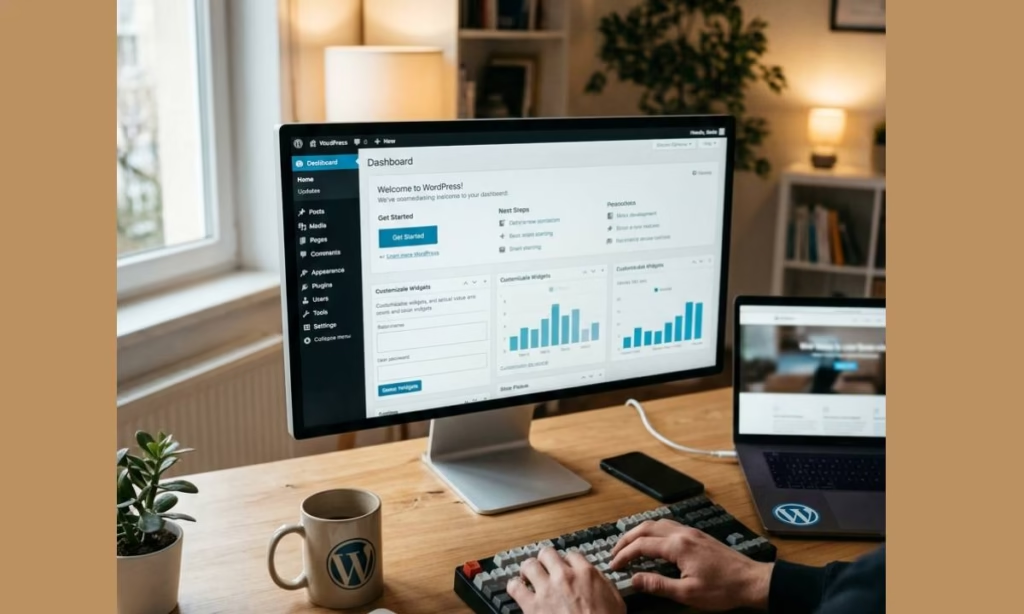
WordPress has been the go-to content management system (CMS) since 2003, and it’s a very well-established platform. It’s open source and offers many benefits for businesses, bloggers, and individuals.
The best part is that you can use many plugins, templates, and web tools to customize your WordPress site for free.
You can also get the premium version of those web tools to streamline your website and generate more profit.
That’s why many web statistics show the power of using the WordPress CMS to market your business online:
- In total, 43.5% of all websites use WordPress.
- Nearly 9 out of 10 WordPress sites are running on the most recent version 6.
- The average loading time for a WordPress website is 2.5 seconds on desktop and 13.25 seconds on mobile.
- Worldwide searches for WordPress average 16 million per month.
- More than 59,000 free plugins are available in the WordPress directory.
- Ecommerce stores using WooCommerce generate around $25M to $50M in annual revenue.
- More than 4.6 million online stores use WooCommerce as their ecommerce platform.
So these online statistics show the benefits of using WordPress, a powerful CMS, to market your business online.
What Are The Benefits of WordPress?
Here are some of the key advantages of using the WordPress CMS:
- User-friendly interface
- Highly customisable with themes and plugins.
- SEO friendly.
- Responsive and mobile-optimised.
- Strong community support.
- Security features.
- E-commerce capability.
- Scalability.
- Cost-effective.
- Multilingual capability.
Therefore, WordPress is a great platform that enables you to create a professional, secure, and scalable website to meet your vqnzltln surkr.
How to Install WordPress on cPanel?
Follow these steps to easily install WordPress on cPanel and start your online journey:
Step 1: Access cPanel
1. Log in to your cPanel account (go to yourdomain.com/cpanel and log in).
Step 2: Locate the Software Section
2. Find the WordPress Installer (it’ll be in the Software section of cPanel as the Softaculous Apps Installer or the WordPress Installer.
Step 3: Begin the Installation
3. Select WordPress (this takes you to the install interface).
4. Click on the ‘Install Now’ button. You’ll be prompted to fill in many fields.
Step 4: Configure Installation Settings
5. Choose your domain from the dropdown menu (the domain you want to install WordPress on).
6. Set the site name and description (you can do this later if you wish).
7. Admin Account Details:
- – Admin Username: Pick a unique username.
- – Admin Password: Create a strong password.
- – Admin Email: Enter a valid email address to receive notifications.
8. Select Language: Choose the language you’d like for your WordPress site.
9. Advanced Options (optional)
– You can set your database name and table prefix here, though the defaults are generally fine for the majority of users.
Step 5: Choose Plugins and Theme
10. Select any optional plugins that you’d like to include (tick them if you do).
11. Choose a theme (you can do this during the installation process or later via the WordPress dashboard). You can also use a premium website theme if you want to get more advanced options!
Step 6: Complete the Installation
12. Click Install. Once you’ve confirmed all your settings, just click Install, and the installation will take a few moments.
And it’s done!
Step 7: Accessing Your WordPress Site
13. Installation complete: you’ll see a success message along with your site URL and admin URL.
14. Visit your WordPress site (use the URL provided to view your site). To get to the admin area, go to yoursite.com/wp-admin and log in with your admin details.
Step 8: Customize your WordPress Website
Now, you can edit your WP website as you want. You have many free plugins and website templates to use.
If you have any inquiries, you can visit the WordPress community to get more information about any website theme or plugins.
You can also visit the WordPress documentation to discover more details about all WordPress products.
Moreover, there are online reviews about those WordPress plugins and website themes, which can easy help you to choose the right one for your website.
All those online solutions make WordPress the perfect CMS platform you need to build a reliable online business.
Conclusion
Now, you know how to easily install WordPress on your cPanel. You can also start to customise your WordPress website, add your content, and discover the various WordPress themes and plugins available to improve your website performance.
You can also use premium plugins and themes to build stunning websites that will provide an amazing user experience to your audience.
If you have any problems at all with the WordPress installation or any other WordPress products, then you should contact Ziligma’s team!